
Are you looking for a seamless solution to generate and save invoices effortlessly? Our Excel invoice template, coupled with VBA automation, offers just that! Say goodbye to manual processes and hello to efficiency with our streamlined invoicing system.
Why Choose Our Excel Invoice Template with VBA Automation?
Our solution combines the flexibility of Excel with the power of VBA automation to streamline your invoicing process. Here’s why it’s the perfect fit for your business:
- Customizable Invoices: Our Excel invoice template allows you to create fully customized invoices tailored to your business needs. Add your logo, company details, and invoice items with ease.
- VBA Automation: With VBA automation, saving invoices as PDF files is a breeze. Simply click a button, and the VBA code will generate the invoice, calculate totals, and save it as a PDF file automatically.
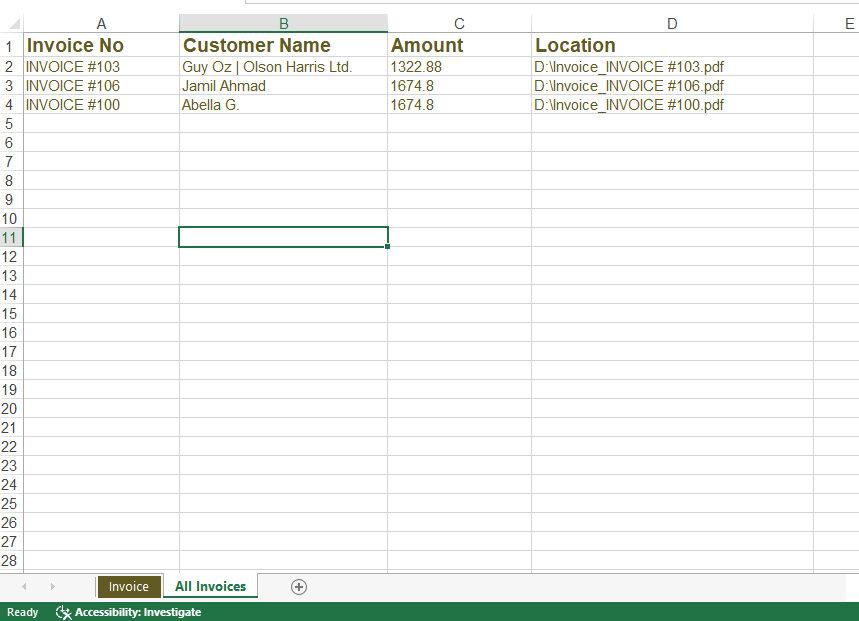
- Effortless Management: Keep track of your invoices effortlessly. Our VBA code not only saves invoices but also creates a list of invoices with client names, amounts, and invoice numbers, providing you with a comprehensive overview of your invoicing history.
How to Use Our Excel Invoice Template with VBA Automation
Getting started with our Excel invoice template and VBA automation is easy. Follow these simple steps:
- Download the Template: Visit our website and download the Excel invoice template with VBA automation to your computer.
- Customize the Template: Open the template in Excel and personalize it with your business details, logo, and invoice items.
- Save Invoices: When you’re ready to save an invoice, simply click the designated button. The VBA code will handle the rest, generating the invoice, calculating totals, and saving it as a PDF file to your specified location.
- Manage Invoices: Access your list of invoices to track payments, client details, and invoice history. Our automated system makes it easy to stay organized and efficient.
Get Started Today!
Ready to revolutionize your invoicing process? Download our Excel invoice template with VBA automation now and experience the convenience of automated invoicing. Spend less time on paperwork and more time on growing your business!
Certainly! Below are the instructions for changing the address of the PDF export location in your VBA code:
- Open your Excel file containing the VBA code for saving invoices.
- Press
Alt + F11to open the Visual Basic for Applications (VBA) editor. - In the VBA editor, locate the module or code associated with the button click event for saving invoices. This is typically where you’ll find the code that exports the invoice to PDF.
- Look for the section of code where the file path for saving the PDF is specified. It might look something like this:
Dim filePath As String filePath = "C:\Users\YourUsername\Documents\" ' Change this path to your desired location
- Modify the
filePathvariable to specify the desired location where you want the PDF invoices to be saved. For example:
Dim filePath As String filePath = "D:\Invoices\" ' Change this path to your desired location
- Save the changes to your VBA code by clicking the Save button in the VBA editor or by pressing
Ctrl + S. - Close the VBA editor by clicking the close button (X) or pressing
Alt + Q.
Now, when you click the button to save the invoice, it will automatically save to the new specified location.
Download Now
Have questions or need assistance? Reach out to us for support. Happy invoicing!
Powered by data tips